Show Me How › MySNI® Plus cartoon guide
MySNI® Plus · a cartoon guide
Your own AI at home. On your phone anywhere.
Every computer is different: if it doesn’t work properly on yours, report it and we’ll fix it with a free update.
Eight short steps, about 10 minutes, then MySNI® answers from your own computer.
Subscribe to MySNI® Plus
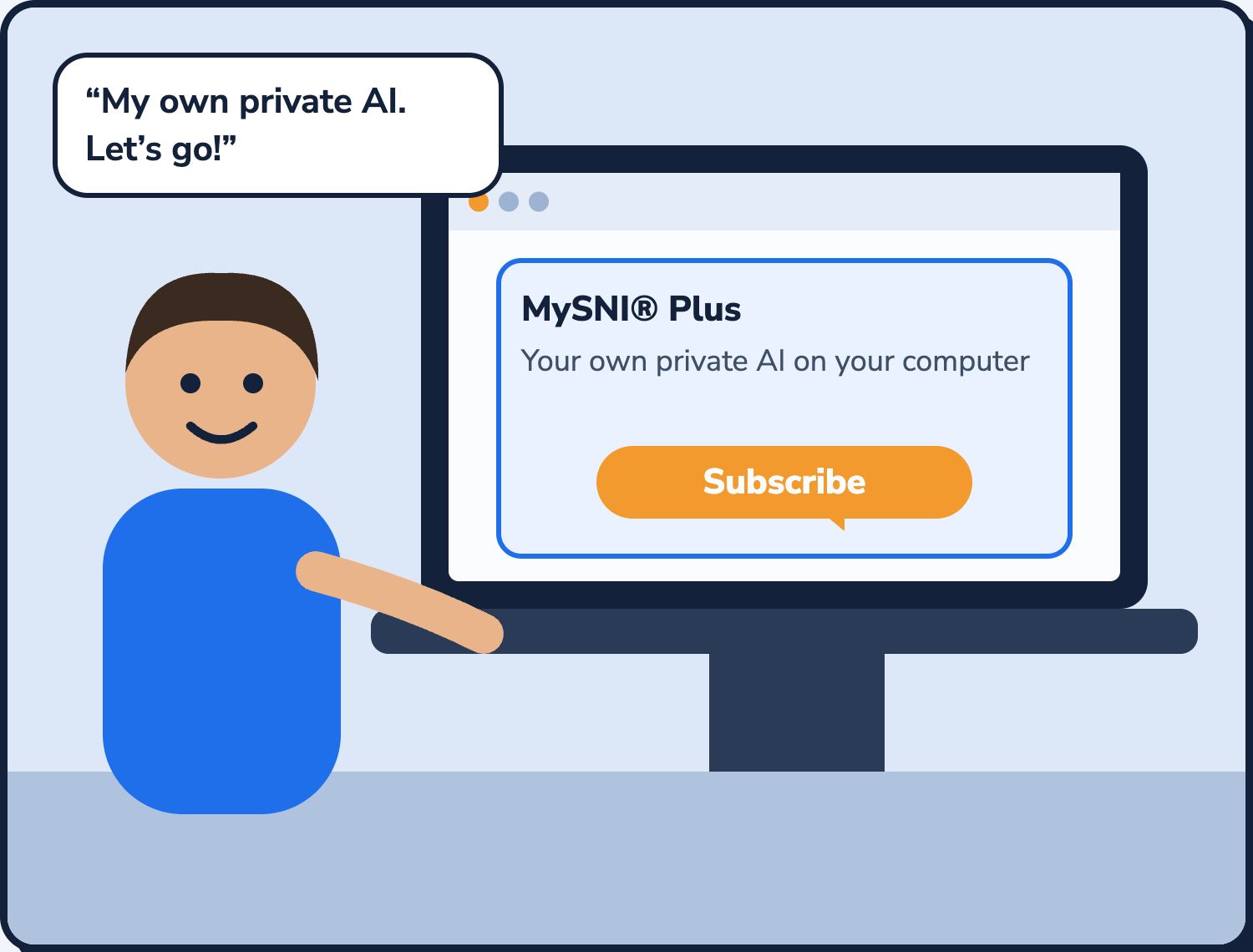
On mysni.ai open Products and Prices → MySNI® Plus and choose Subscribe. This opens your MySNI® account page (api.mysni.ai/account): sign in, or make an account.
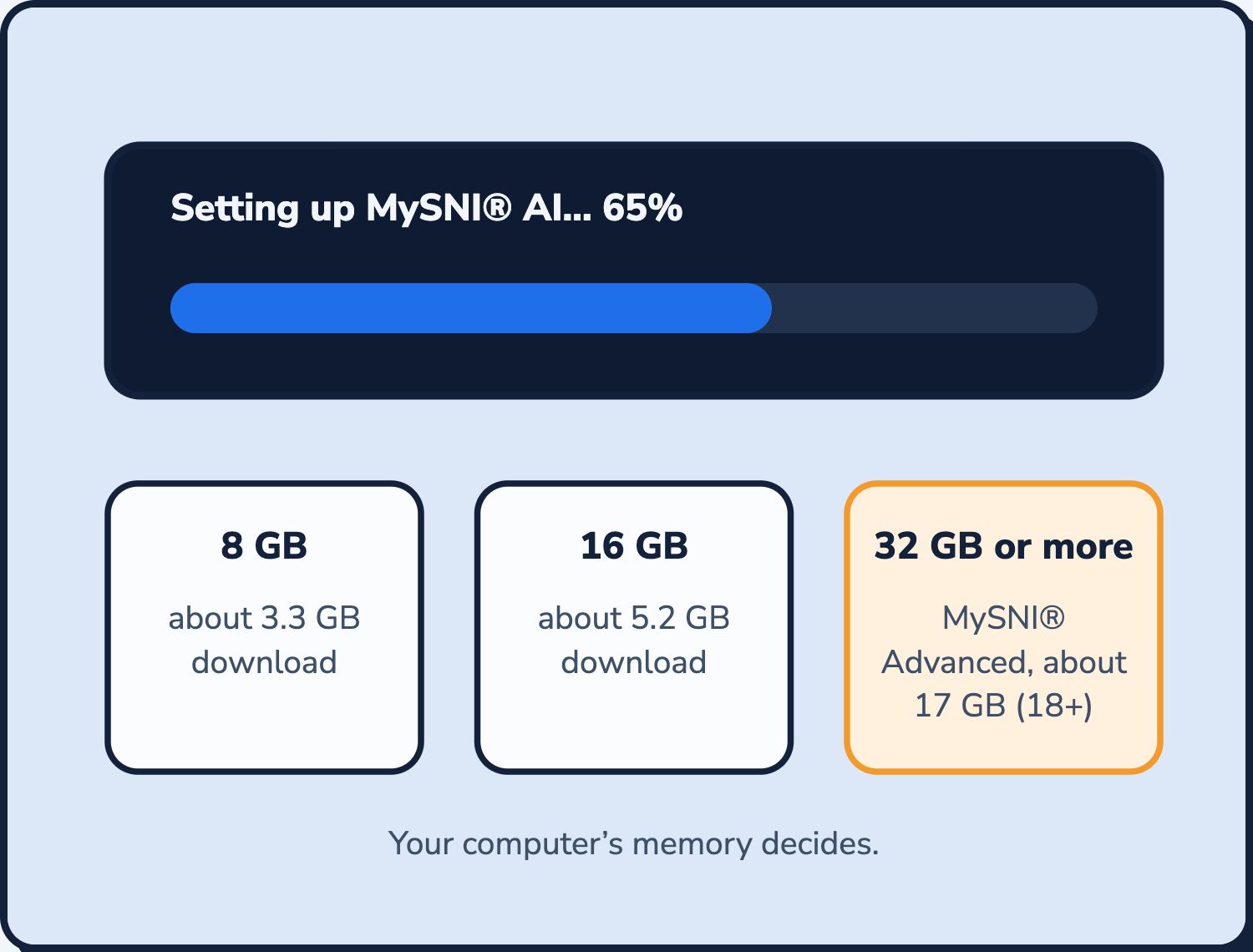
Choose your level by your computer’s memory: Small £9.99 a month (8 GB), Standard £12.99 a month (16 GB), Advanced £15.99 a month or £135 a year (32 GB or more). No VAT. Cancel any time.
Download and install MySNI® Node
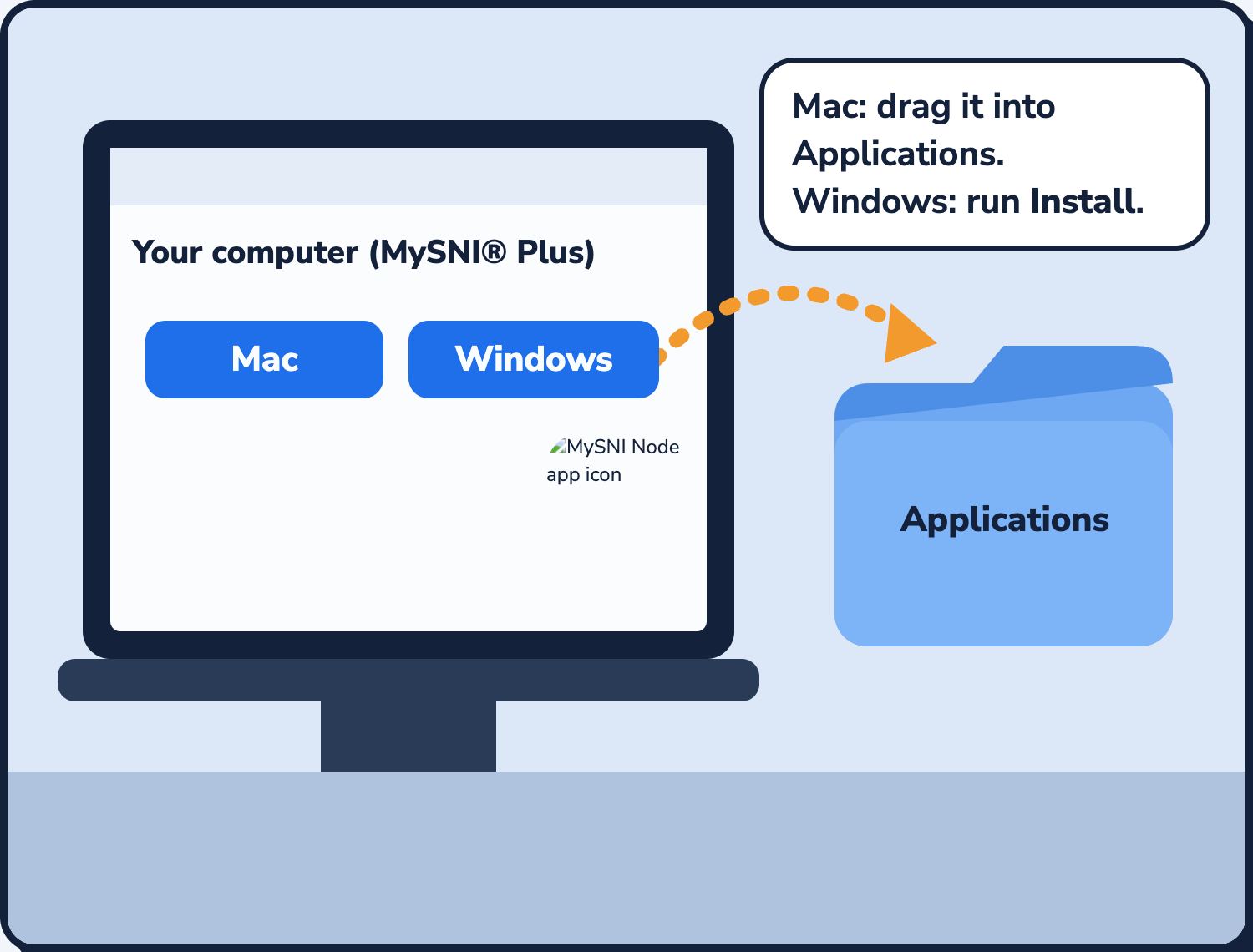
Your MySNI® account page (api.mysni.ai/account, or Account in the mysni.ai menu) now shows Your computer (MySNI® Plus) with downloads for Mac and Windows.
Windows: if it says “Windows protected your PC”, choose More info, then Run anyway.
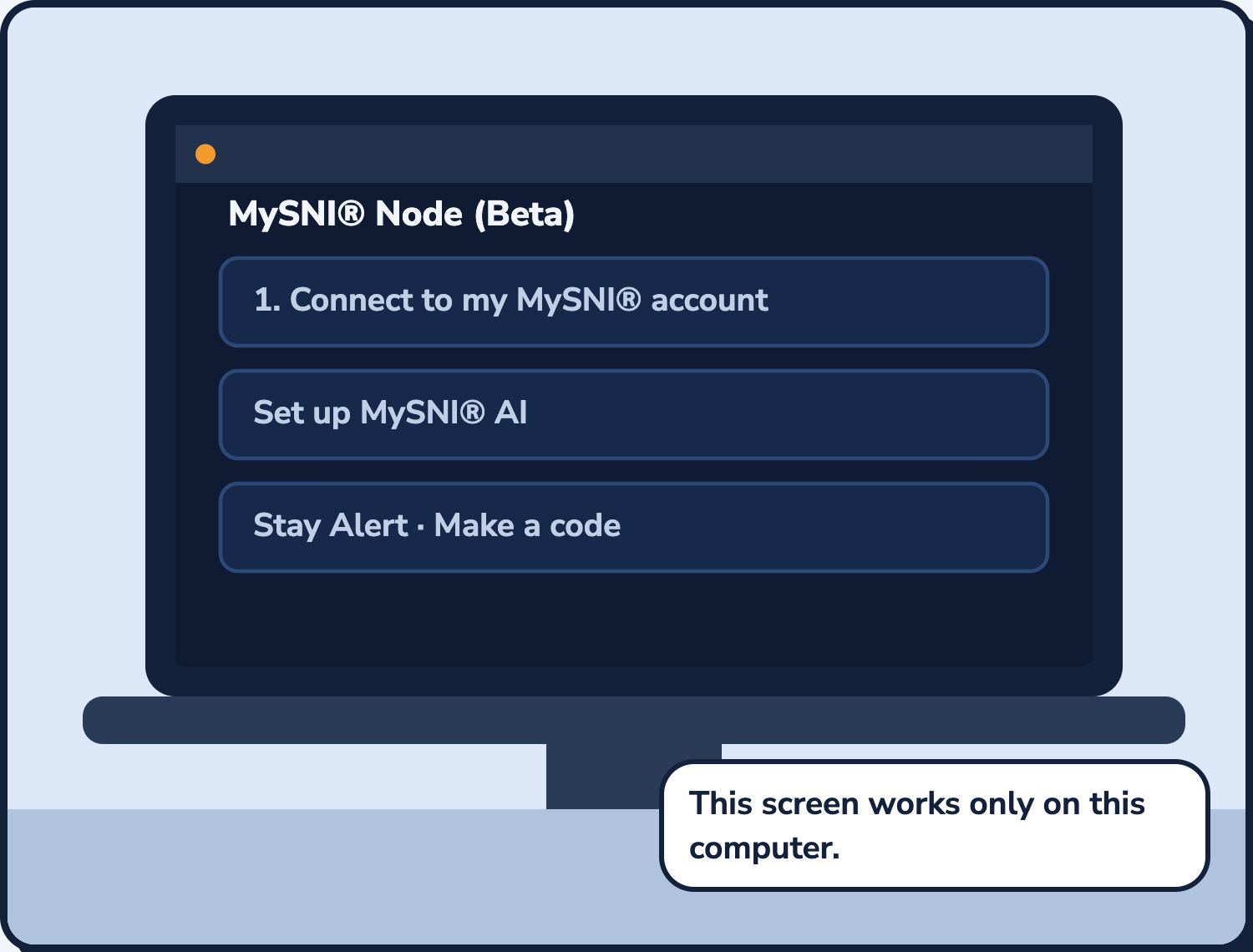
Open MySNI® Node
Its screen opens in your web browser. It runs quietly in the background and starts again when you log in.
Can’t see it? Search for MySNI Node (Mac: ⌘ Space; Windows: Start).
Connect it to your account
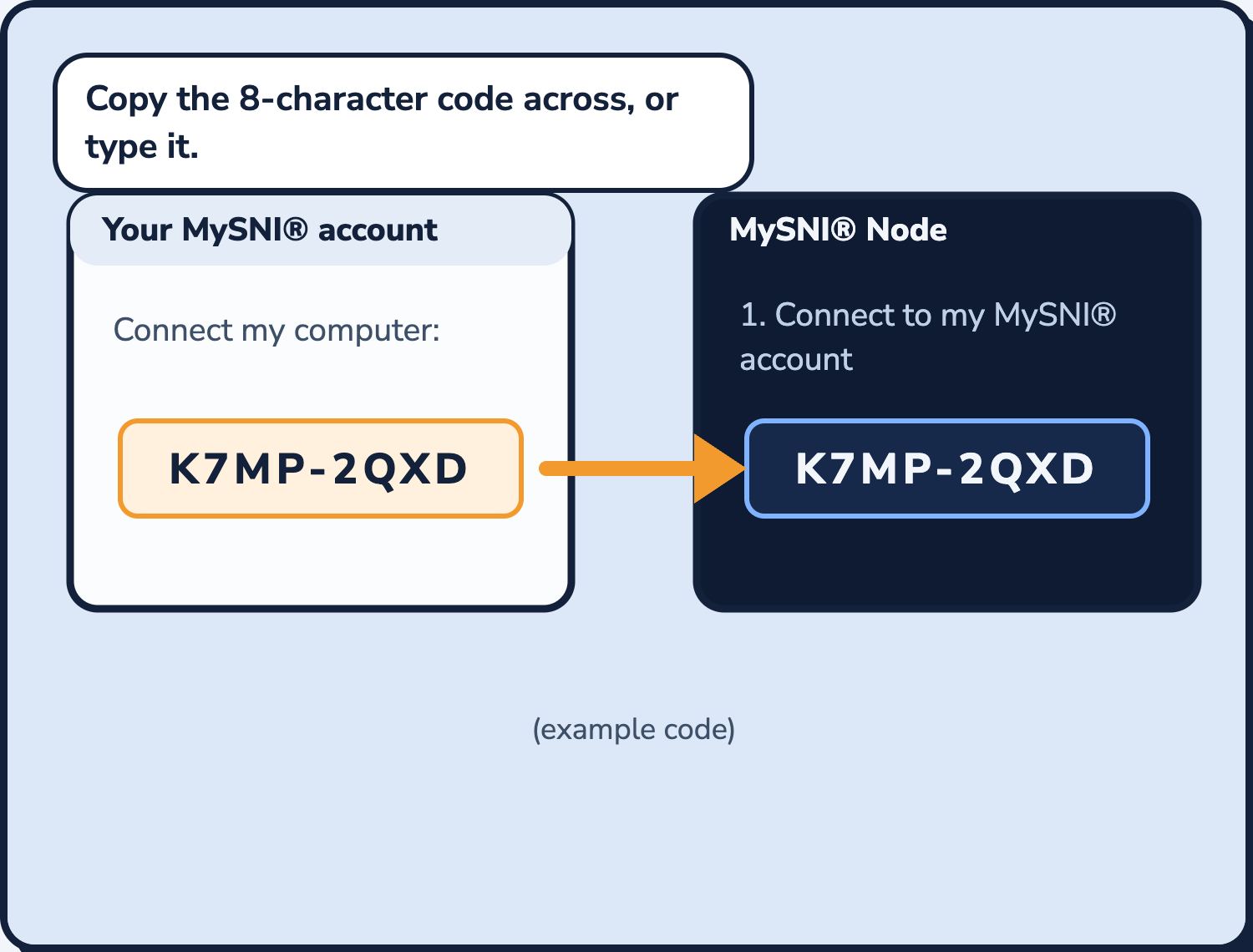
On your MySNI® account page (api.mysni.ai/account) choose Connect my computer. Type the code it shows into 1. Connect to my MySNI® account on the MySNI® Node screen.
A short 8-character code. Choose Copy and paste it, or just type it. Capitals and the dash don’t matter. It works once, for 10 minutes.
Set up MySNI® AI
Choose Set up MySNI® AI. MySNI® Node checks your computer’s memory and downloads the AI for your level, once. It never installs more than your computer can run.
Leave it to finish. A large download can take a while on slow broadband.
Leave Stay Alert on
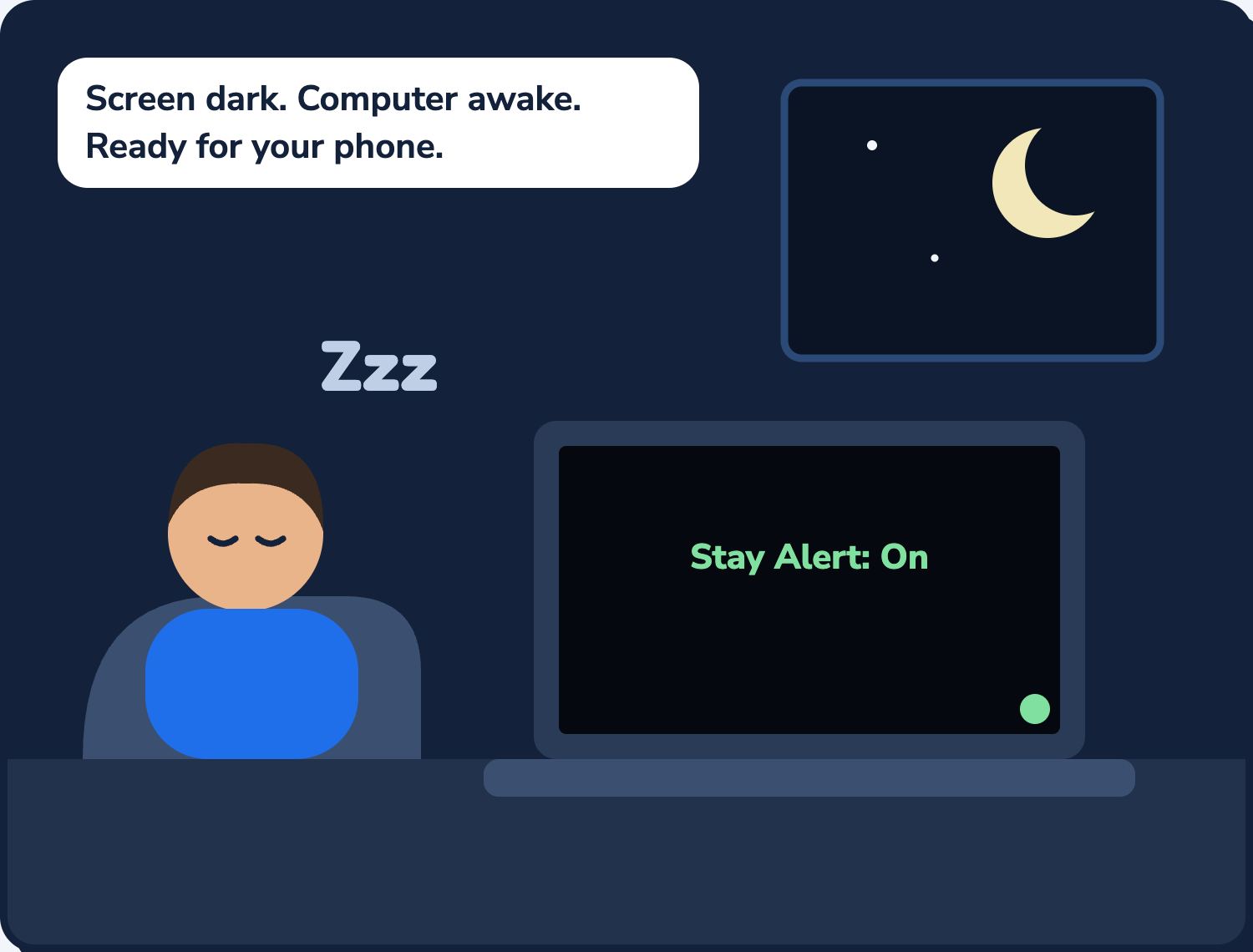
Your computer stays awake so your phone can reach it. The screen can still go dark, so it uses little power. Any key lights it up.
Laptops: keep it plugged in. On a Mac laptop, leave the lid open.
Connect your phone
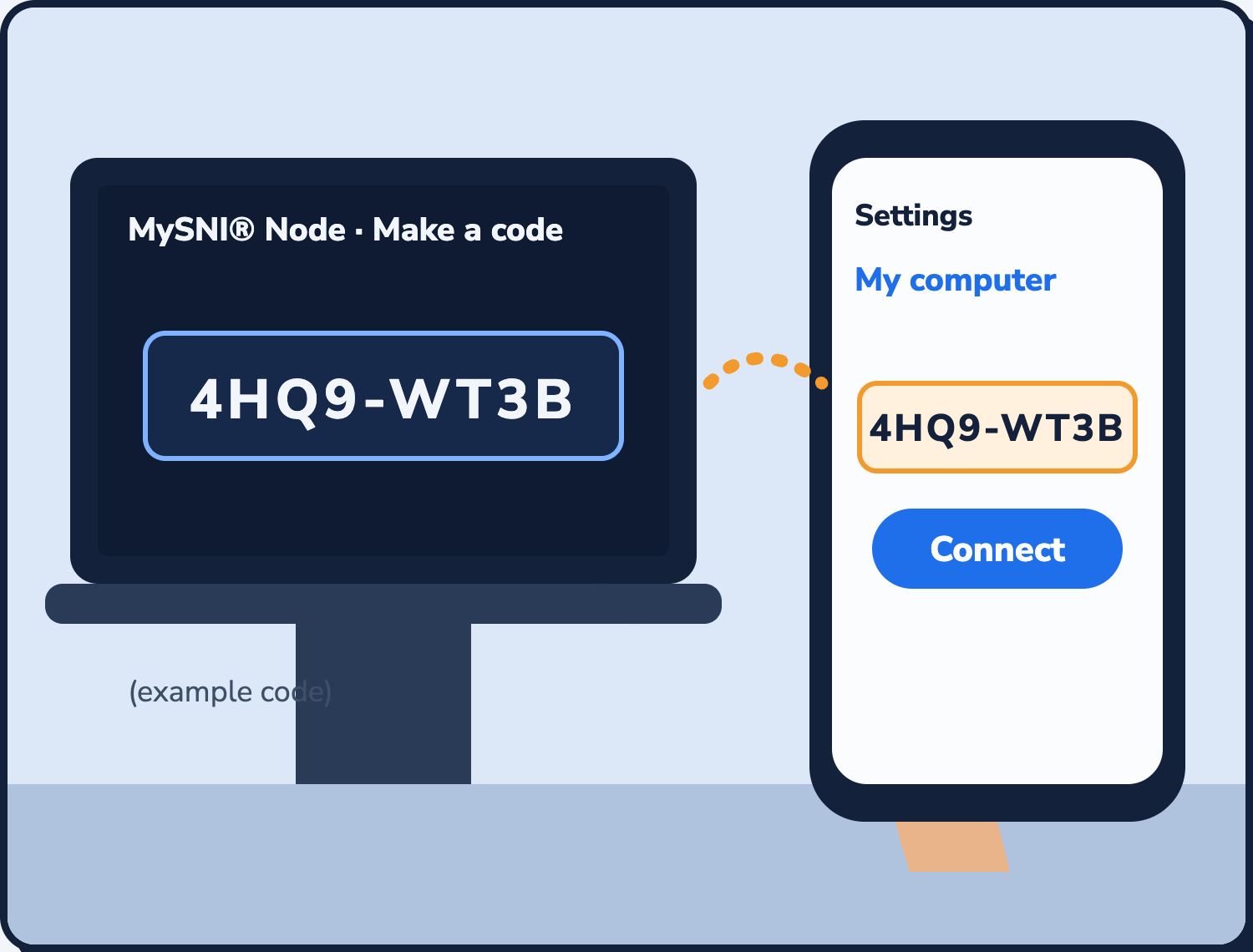
On the MySNI® Node screen choose Make a code. In MySNI® on your phone open Settings → My computer, type the code and choose Connect.
Each code works once, for 10 minutes. Up to 5 phones, tablets or browsers.
Ask Simon or Cindy, anywhere
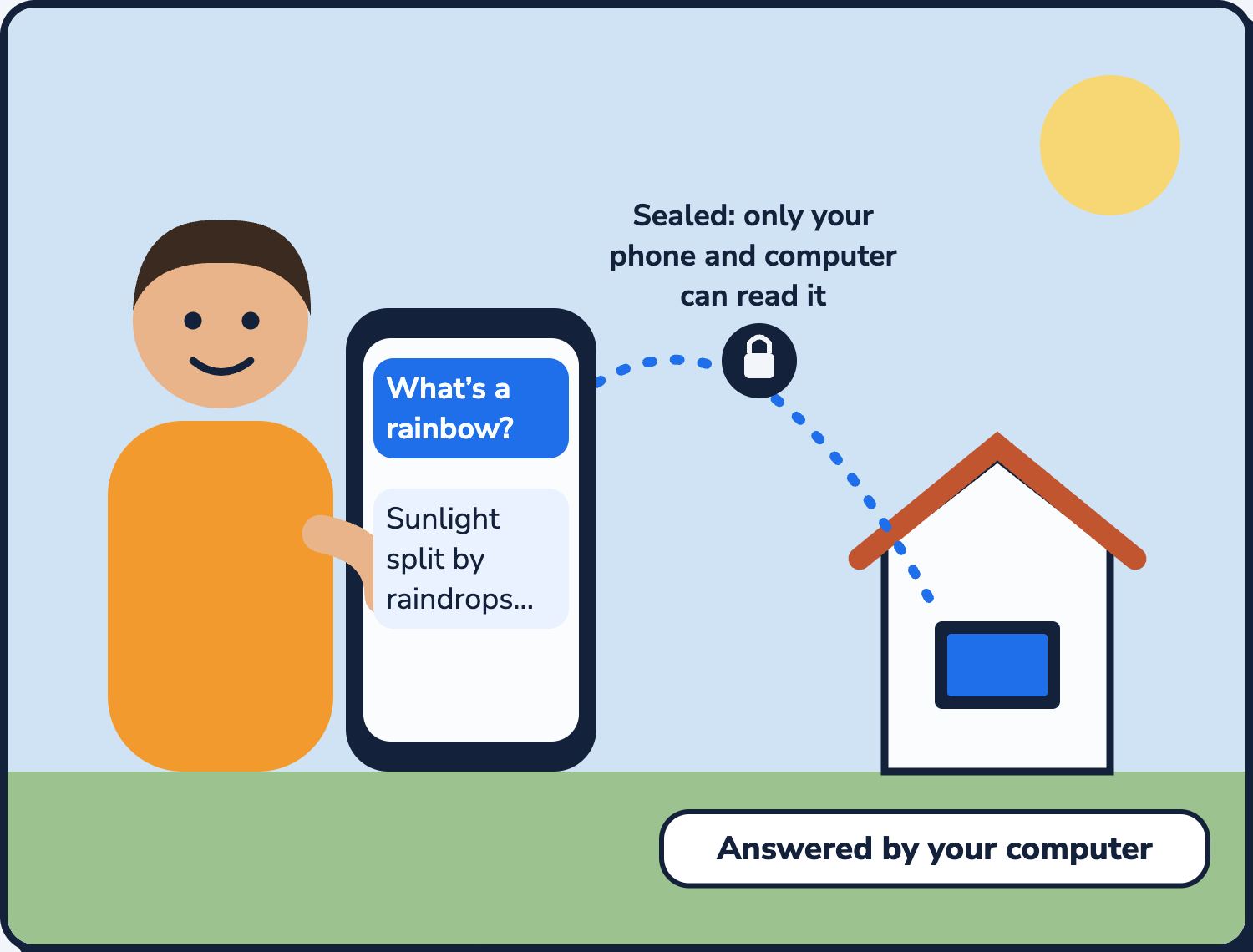
Ask as usual. While your computer is online, the answer comes from your own computer, and says so.
Home, work or mobile data. No router settings to change.
Good to know
Computer asleep or off?
Your phone shows “asleep or offline since…”, and Simon answers from your phone instead.
Private by design
Questions and answers are sealed on your phone and your computer. MySNI® can’t read them.
Up to 5 devices
One computer and up to 5 phones, tablets or browsers per subscription. Remove one on the MySNI® Node screen.
Need help?
In the app: Settings → Send Beta feedback. Or email enquiries@mysni.ai.
MySNI® is in Beta until MySNI® 1.0 on 31 March 2027. Updates are free while you subscribe.
See the same steps on the real screens → All training guides