MySNI Systems Training

Learn every MySNI function.

Visual, step-by-step training for the current MySNI v0.5.5.3 platform, Guardian and Fake AI & Fact functions.

MySNI Personal

Si, Edge and your private Mac Node
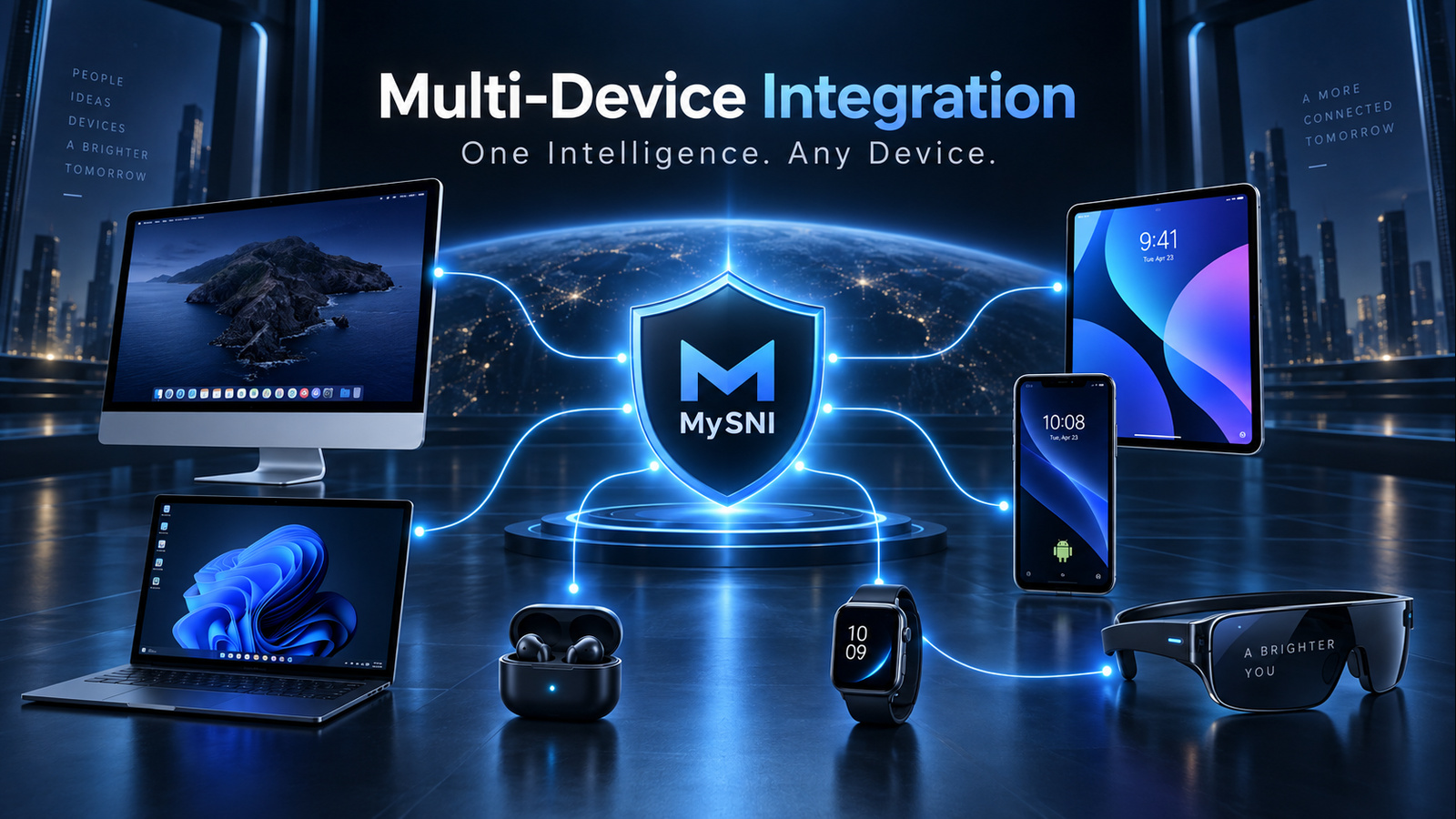
MySNI multi-device integration
MY SNI TRAINING

1. Pair the phone with your Mac Node

  1. Start the MySNI Mac Node.
  2. Open MySNI on the phone.
  3. Use the pairing workflow and approve the invitation.
  4. Confirm the Node shows as paired/available.
  5. Test with a normal question.
VIDEO 1
How to pair MySNI with your Mac Node
MySNI private intelligence
MY SNI TRAINING

2. Ask Si a general question

  1. Type or speak your question.
  2. Local time/date/arithmetic runs locally first.
  3. Ordinary AI questions can route to the paired private Mac AI through your MySNI settings.
  4. Si uses your private MySNI Node for advanced local intelligence.
VIDEO 2
Using Si and automatic private Node routing

MySNI privacy and documents
MY SNI TRAINING

3. Use private documents

  1. Import your document.
  2. Ask a question about it.
  3. MySNI uses the private document path.
  4. Review the source file name with the answer.
  5. If nothing useful is found, MySNI should say so.
VIDEO 3
Private document import and questions
Voice control with Si
MY SNI TRAINING

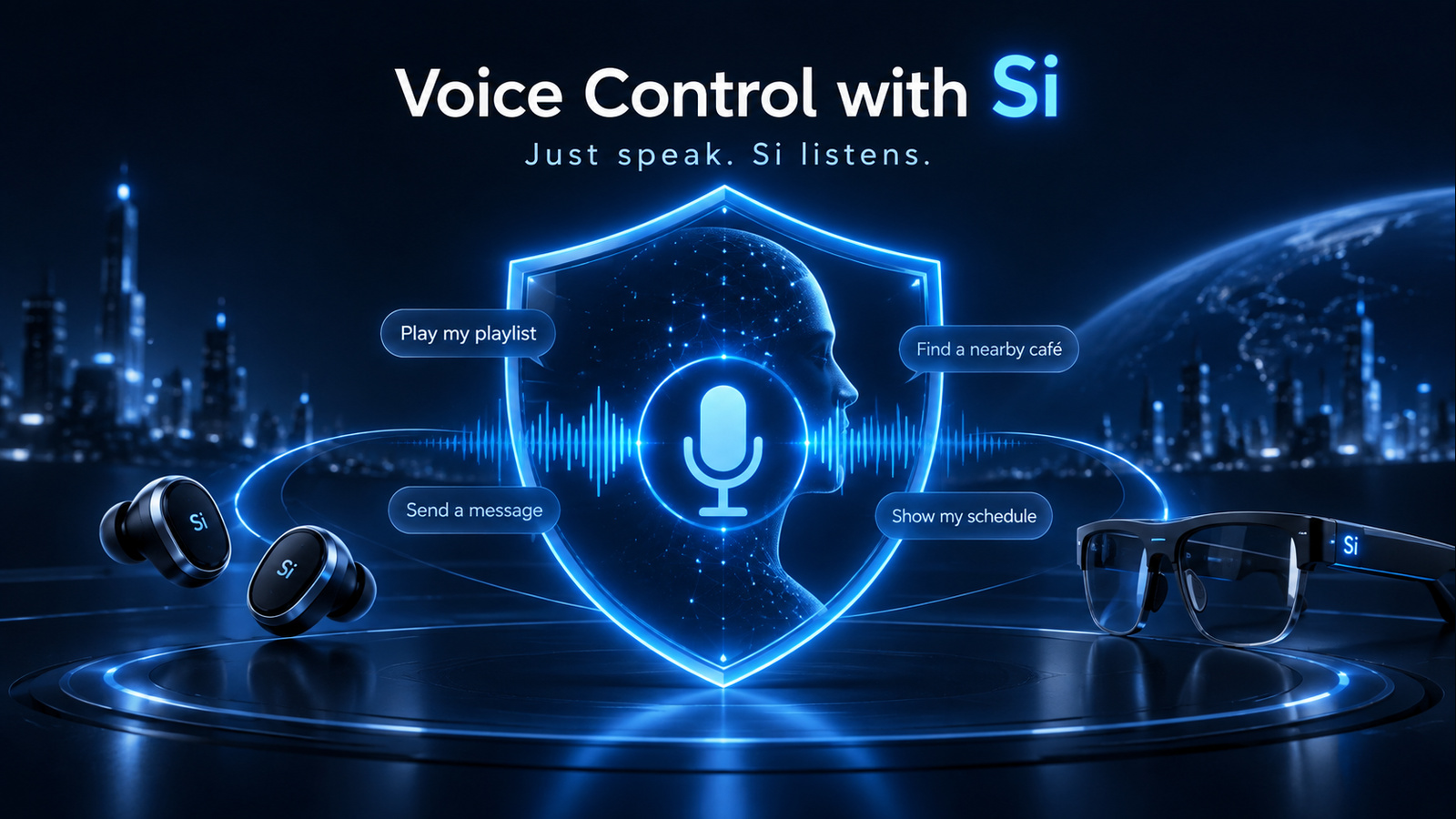
4. Voice control

  1. Allow microphone access.
  2. Use the microphone control.
  3. Speak naturally.
  4. Use Android-routed earbuds where supported.
VIDEO 4
Voice control with phone and earbuds
Local Hybrid Online modes
MY SNI TRAINING

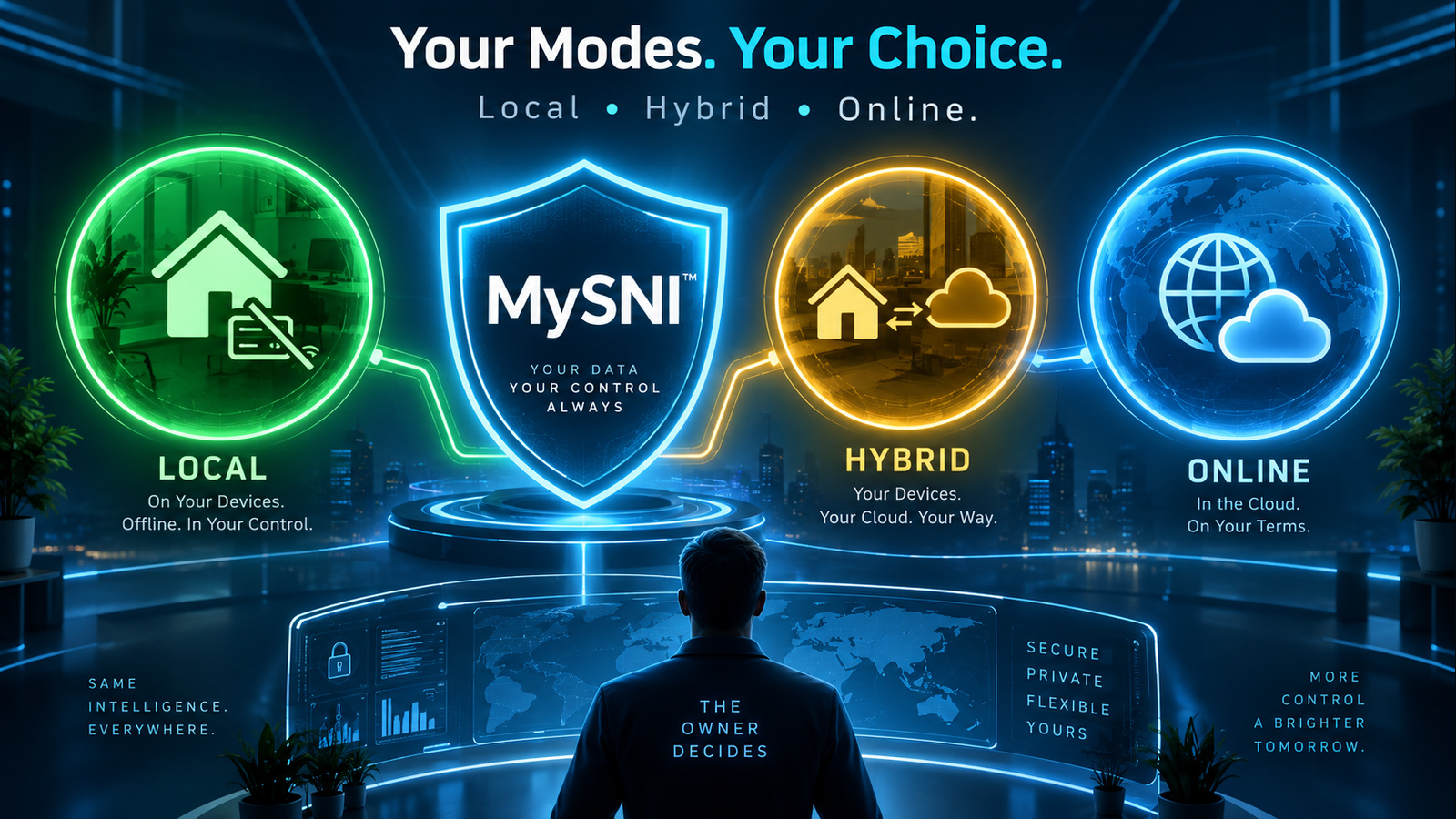
5. Choose your connection mode

  1. Offline: no Node or external service access.
  2. Private/Hybrid: local/private first, approved online services when needed.
  3. Online: approved online functions may be used.
VIDEO 5
Local, Hybrid and Online modes
Guardian

Guardian dashboard and pairing

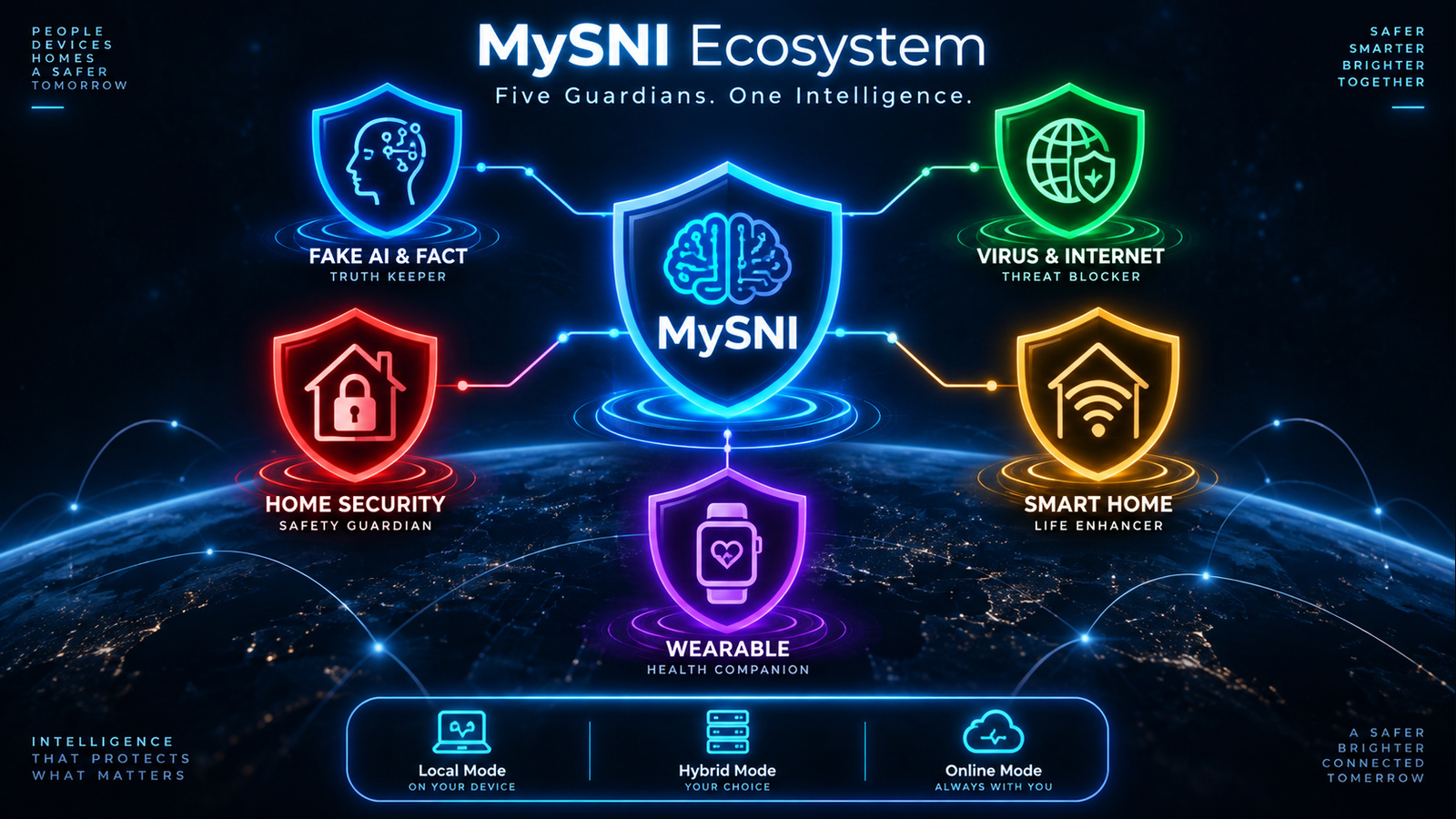
MySNI Guardian ecosystem

6. Use Guardian

  1. Open Guardian.
  2. Select the required module.
  3. Choose the Guardian function you want to use.
  4. Use Hardware Pairing Centre for setup workflows.
  5. Follow the on-screen pairing steps to add and control your Guardian devices.
VIDEO 6
Guardian dashboard and Hardware Pairing Centre
Fake AI & Fact

Images, video, speech and claims

Fake AI and Fact Guardian

7. Check an image

  1. Select an image or use the camera.
  2. Run analysis.
  3. Review classification and uncertainty.
  4. Review the result, supporting indicators and confidence level.
VIDEO 7
Checking an image or camera capture
Fake AI and video checking

8. Check a video

  1. Select a supported video.
  2. Allow frame sampling.
  3. Review the combined result.
  4. Review the result and supporting analysis before making your decision.
VIDEO 8
Checking a video
Si voice and fact checking

9. Speech & Fact Check

  1. Start transcription.
  2. Speak or enter claim text.
  3. Review factual claims versus opinion/prediction/questions.
  4. Use configured fact-check sources where available.
  5. Review the claim result and supporting fact-check information.
VIDEO 9
Speech and Fact Check
Video Library

Training video slots

Video placeholders are ready for each current function. Add MP4 files or hosted videos when recorded from the current tested build.

MySNI Video Training: each module is designed to include a full walkthrough video showing the function from start to finish.